EMLE Notes - Watching video
Welcome to EMLE Notes !Here’s how to watch videoHow to Access Video Playback OptionsGo to the"my library" Tab at the bottom of screen
Welcome to EMLE Notes !Here’s how to watch video
How to Access Video Playback Options
Go to the"my library" Tab at the bottom of screen : Tap on the “Courses” 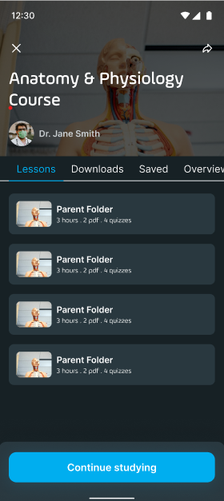
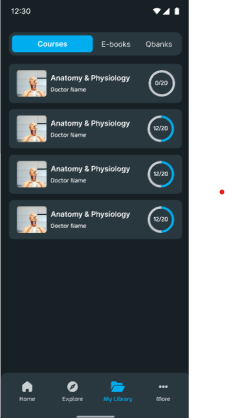
Select a Course: Choose a course that includes video content.
Open a Video Lesson: Tap on any video to start playback. You’ll find a range of playback options accessible within the video player.
Customizing Your Video Playback
Here’s a breakdown of the playback features available to optimize your experience: 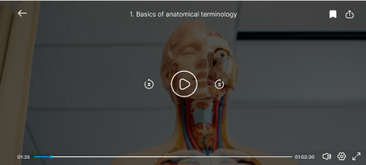
1 - Video Quality: Adjust the video quality to match your internet connection. Choose from options like 360p, 720p, and HD. Lower quality is ideal for slower connections, while HD is best for high-speed internet. 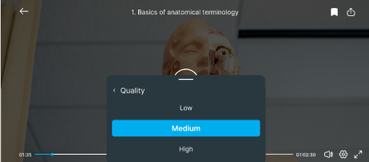
Playback Speed: Select the speed that suits you best, whether it’s slowing down to 0.5x for detailed learning or speeding up to1.25 , 1.5x or 2x to quickly review content. 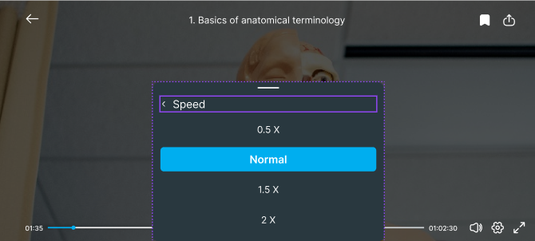
2 - Skip Forward/Backward by 10 Seconds: Skip Forward: Tap the 10-second forward icon (⏩) to jump ahead by 10 seconds. Skip Backward: Tap the 10-second backward icon (⏪) to rewind 10 seconds.
No comments yet. Login to start a new discussion Start a new discussion